“Where are you?”
“Almost home.”
For a parent of a teenager, almost home covers a lot of ground: the bus stop, a friend’s porch, the taco place two blocks the other way. That gap is usually where Apple parental controls come up in a family. The phone in your kid’s pocket is an iPhone, and you’d rather look once than send a third text.
Open Findmykids and you see where Maya is right now — the stop on Main Street, and the route she took to get there. Mark that stop, the school and the gym as places, and a notification arrives when she gets there and when she leaves. Nothing to ask, nothing to answer.
What the iPhone itself gives you
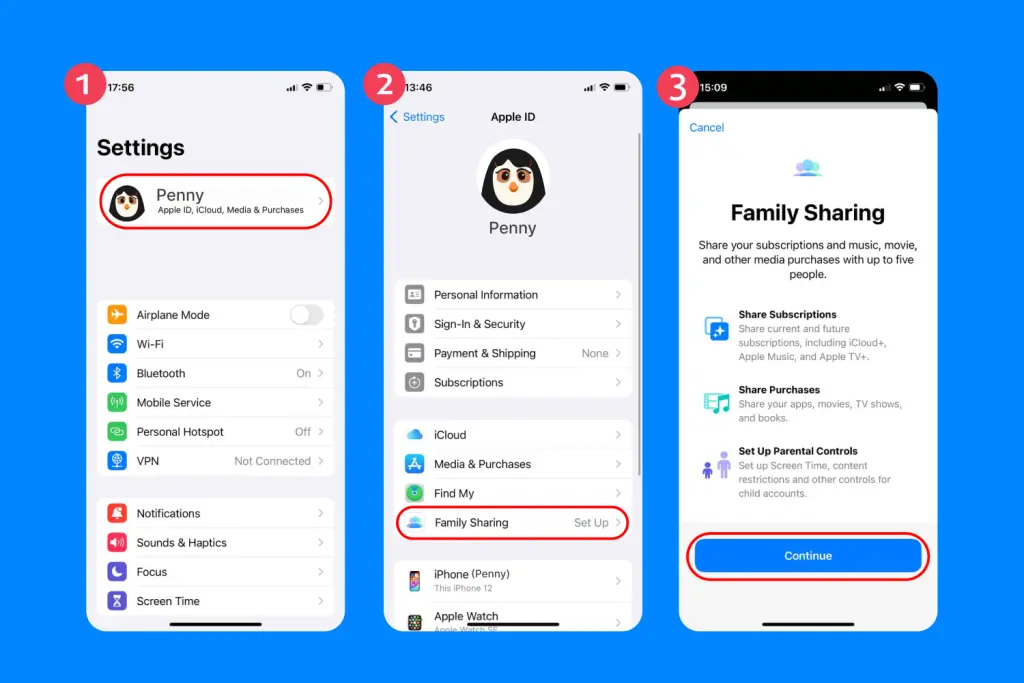
Screen Time lives in Settings and works on the device: limits by app and category, downtime, content restrictions, all set up through Family Sharing. Find My shows where the family’s Apple devices are. Both are useful, and both are exactly what they say — screen rules in one place, a map in another, with no alert that ties the two to the day your teen is actually having.
Where she is, and where she’s been
The map answers the first question. The rest of it answers the ones that come later in the evening.
You can look back at the week and see which routes she took and when she got home. If the usual route changes, a notification tells you before you’d notice on your own. She’s not picking up — you send a Loud Signal, and her phone rings with a tone loud enough to cut through silent mode, which is where teenagers’ phones live. If something goes wrong on her end, she presses SOS and you get it with her location. You also get a heads-up when her phone is almost out of charge, which is the real reason most “she’s not answering” evenings happen.
Both parents can be in the same family circle, looking at the same map. No one has to be the one who relays.
The screen side is in the same app
You don’t need a second app for the other half of the day. Findmykids shows you the screen time picture on Maya’s phone: how much time the day added up to, which apps are on it, how the week looked next to last week, and where the phone was in hand.
From there you can:
- cap total screen time for the day, and add fifteen minutes when homework runs long;
- set schedules for school hours and for sleep;
- block the phone right now, when dinner is on the table;
- keep adult sites out, and turn off new app installs.
One thing worth saying out loud: with a teenager, this works as an agreement, not as a surprise. Show her the map, show her the arrival alerts, tell her what you see and what you don’t. The point isn’t to catch anything. It’s that neither of you has to spend the evening texting the same two questions.
Setting it up
The map, the places, route history and the alerts are free once both phones are set up, and the fuller set of screen time limits comes with a paid plan. Findmykids is in the App Store and on Google Play.
Give it a quiet evening rather than a rushed morning, and start with the places: home, school, and wherever she actually goes after — the gym, the library, a friend’s street. That’s the part that pays off by the end of the first week.
Also Read
- conveying-and-estimating-for-industrial-conveyor-system-design-and-installation/
- professional-linkedin-banner-designs-for-recruiters-and-hr-experts/
- why-a-math-crossword-beats-flashcards-for-keeping-your-mental-arithmetic-sharp/